Codemagic
This guide provides an overview of how to use Codemagic for building and deploying applications for Android, iOS, and Web platforms. Follow these guidelines to set up and manage build workflows effectively.
Login Information
To access Codemagic, use the following login credentials:
Email: [email protected]
You don’t need a password to login. After inserting email you will get a verification code at [email protected], you will add this verification code and you will be logged in
Available Workflows
Android
- build-all-android-staging
- Purpose: Generate APKs for the staging environment.
- Usage: For testing and internal review.
- build-all-android-production
- Purpose: Generate APKs for production distribution and internal testing.
- Usage: For distributing APKs before an official release.
iOS
- build-all-ios-staging
- Purpose: Create TestFlight builds for the staging environment.
- Usage: For staging and internal testing.
- build-all-ios-production
- Purpose: Create TestFlight builds for production.
- Usage: For distributing the app to end-users in the production environment.
Huawei
- huawei-production
- Purpose: Create Apks for production.
- Usage: For distributing the app to end-users in the production environment.
- NOTE: For Huawei we only build for production environment
Web
- web-staging
- Purpose: Deploy the web application to the staging environment.
- Usage: For testing and review before production deployment.
- web-production
- Purpose: Deploy the web application to the production environment.
- Usage: For end-user access.
Manual App Addition:
Before using Codemagic to distribute new apps, they must be manually added to the respective app stores (Google Play Store, Apple App Store). Only after this step can updates and new versions be delivered through Codemagic. Starting a New Build
To initiate a new build, follow these steps:
- Log in to Codemagic
- Use the provided login credentials.
- Select the Workflow
- Choose the appropriate workflow for your target platform and environment.
- Trigger the Build
- Click on the desired workflow in the Codemagic dashboard to start the build process.
- Monitor the Build
- Keep track of the build progress and check logs for any issues.
- Retrieve Build Artifacts
- Once the build is successful, download the generated artifacts (APKs, TestFlight builds, etc.).
Workflow with images
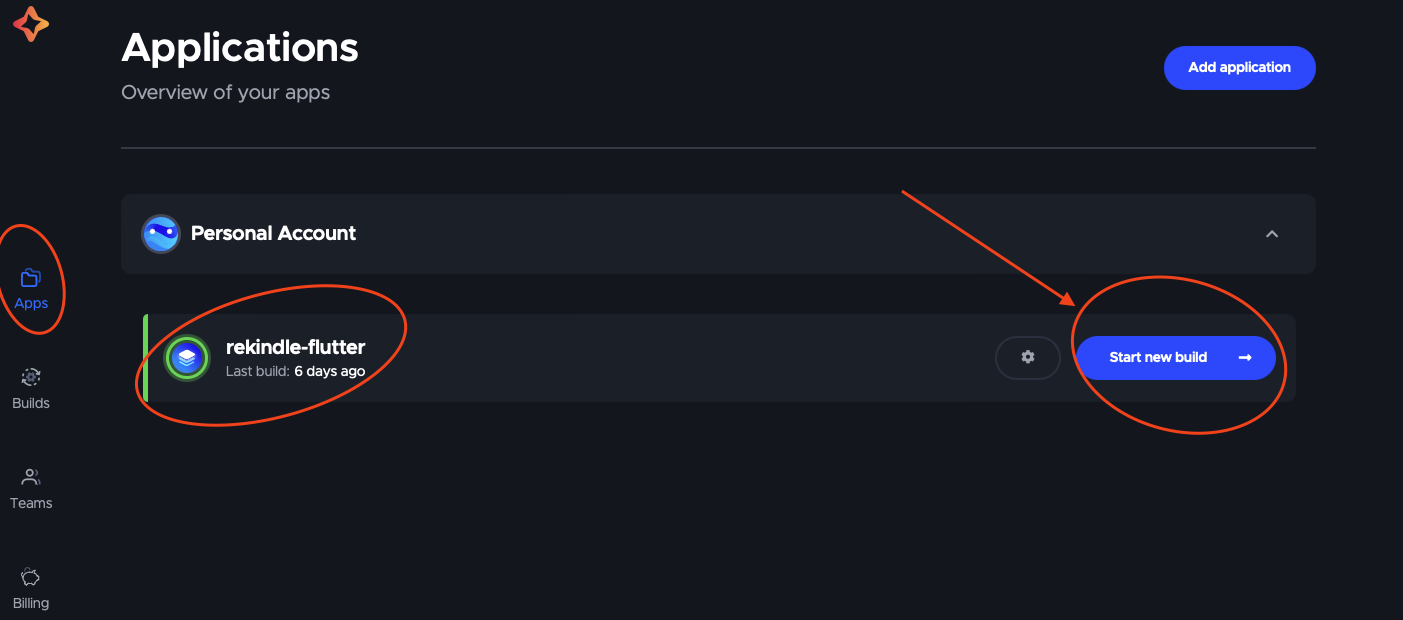
1º Select the project
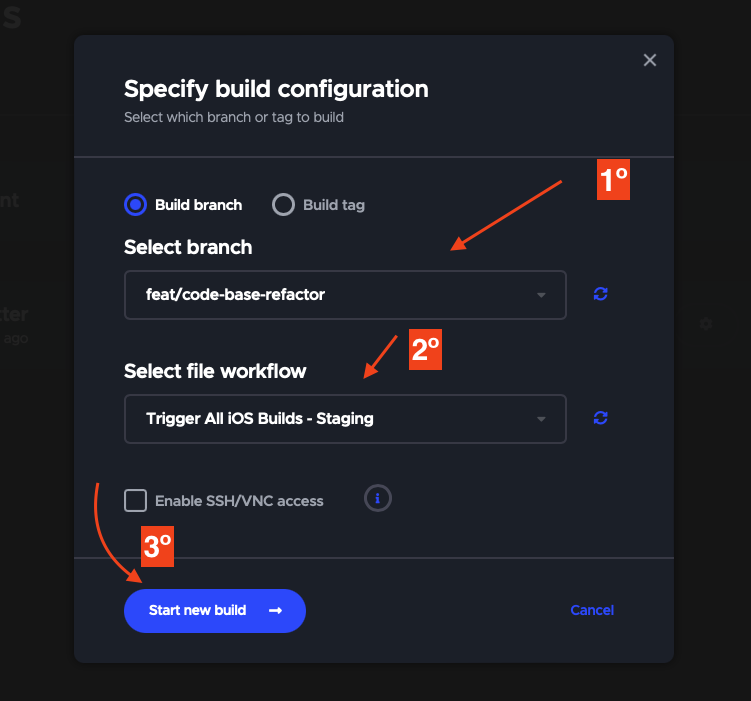
2º Select Branch and Workflow, then start build
Important Notes
Whenever a branch is merged to develop branch, all staging workflows are going to be triggered. And whenever a branch is merged to master, all production workflows are going to be triggered.
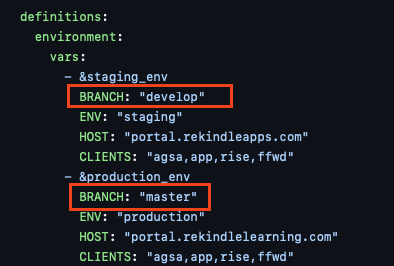
By default, for develop builds Codemagic is going to use
developbranch and for production is going to usemasterbranch. So if you plan to trigger the builds from your current branch, remember to change these default branch values to match your current branch (see image below).